VS Code DevContainers: A Practical Deep Dive
A senior engineer's guide to understanding what DevContainers are, how they work internally, and why they make development cleaner, faster, and more reliable.
VS Code DevContainers: A Practical Deep Dive
The Simple Definition
A DevContainer is a fully described, isolated development environment that lives inside your project and opens directly in VS Code.
Instead of installing tools, runtimes, and dependencies on your local machine, you describe them in a configuration file. VS Code then builds that environment automatically and connects to it, giving you a consistent and reproducible workspace every time.
The Real-World Analogy
Think of a professional film production crew.
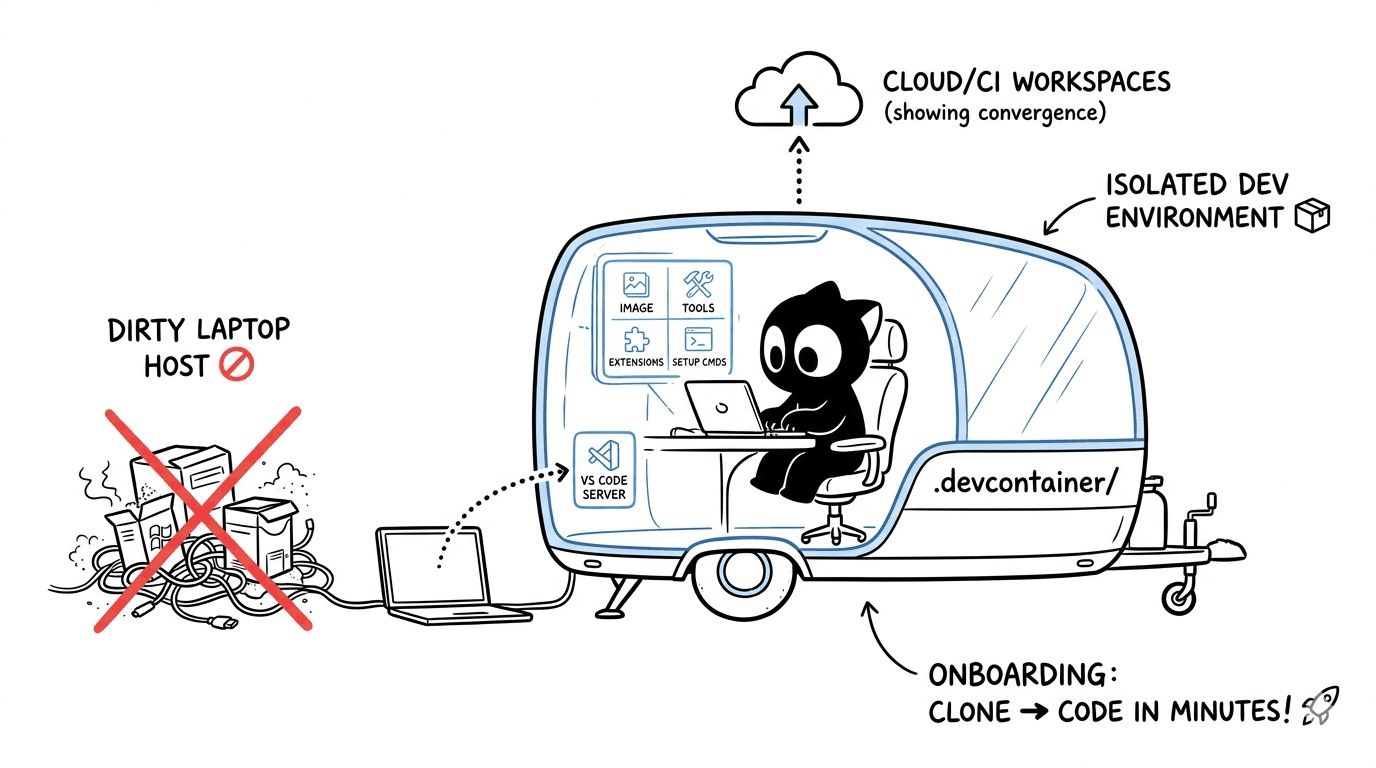
When they travel to a new location, they do not rebuild their studio from scratch. They bring a mobile production unit, a self-contained trailer that already has the cameras, lights, monitors, cables, and editing stations exactly the way the crew expects.
The team can park anywhere, plug in, and start working immediately. The location may change, but the working environment stays identical.
A DevContainer plays the same role for software engineers.
| Production Unit | DevContainer |
|---|---|
| The trailer | The container |
| Cameras, lights, tools | Runtimes, CLIs, libraries |
| Setup checklist | devcontainer.json |
| Crew workstation | VS Code |
| Any filming location | Any developer's machine or cloud workspace |
Your laptop becomes just the location. The real working environment travels with the project.
How It Works (Step-by-Step)
1. You describe the environment as code
Inside the repository, you add a folder:
.devcontainer/
And a configuration file:
.devcontainer/devcontainer.json
This file declares:
- the base image or Dockerfile to use
- language runtimes and versions
- system packages and CLIs
- VS Code extensions to preinstall
- post-create commands to run setup tasks
- ports to forward
- environment variables and mounts
This is your environment specification, versioned alongside your source code.
2. VS Code reads the specification
When you open the repository and select Reopen in Container, the Dev Containers extension parses devcontainer.json and prepares to build the environment.
It decides:
- whether to use a prebuilt image, a custom Dockerfile, or a Docker Compose stack
- which features to install (Node, Python, Azure CLI, Terraform, etc.)
- which extensions belong inside the container vs. on the host
3. The container is built
Behind the scenes, Docker (or a compatible runtime) builds the container image and starts a container from it.
This container is:
- isolated from your host machine
- lightweight compared to a full virtual machine
- reproducible from the same configuration on any machine
4. Your source code is mounted in
Your project folder is mounted into the container, so files stay in sync between your editor and the running environment.
You edit on the host. The container sees the changes immediately. The application runs against the mounted code.
5. VS Code connects into the container
This is the part most engineers underestimate the first time.
VS Code splits into two pieces:
- The UI continues to run locally on your machine
- A VS Code Server is installed inside the container and handles language services, terminals, debugging, tasks, and extensions
The result feels like local development, but the actual execution, tooling, and dependencies all live inside the container.
6. The team gets the same environment
Once committed, any teammate can clone the repository, open it in VS Code, reopen in the container, and get the exact same setup.
No "install these 12 tools first" onboarding doc. No version drift. No mystery failures.
What Is Really Happening Under the Hood
Let's go one layer deeper without overcomplicating things.
Containers vs. virtual machines
A virtual machine emulates an entire computer, including its own operating system kernel. It is heavy and slow to start.
A container shares the host kernel and isolates only the user space: filesystem, processes, network, and dependencies. That is why containers start in seconds and use far fewer resources.
DevContainers ride on this model, which is why they feel snappy compared to traditional VM-based development.
The split-brain editor model
The Dev Containers extension uses the same Remote Development architecture that powers SSH and WSL workflows in VS Code.
- The editor window is local
- The language server, terminal, debugger, file watchers, and extensions run remotely (in this case, in the container)
- A thin protocol connects the two
This is why your Python interpreter, linters, and even Git operations behave as if they were running inside the container, because they are.
Filesystem strategy
There are two common patterns:
- Bind mount the host folder into the container. Fast to set up, but file I/O performance can vary on Windows and macOS.
- Clone into a named volume managed by Docker. Better I/O performance, especially for large repositories or heavy build tools.
Choosing the right strategy matters once your project grows.
Environment as code
The most important architectural shift is this:
The development environment becomes part of the repository.
Before DevContainers, environment setup lived in README files, wiki pages, and tribal knowledge. With DevContainers, it lives in version control next to the application code. It is reviewed in pull requests. It evolves with the project. It is reproducible by design.
That is a meaningful engineering upgrade, not just a developer convenience.
Why It Matters
1. It eliminates "works on my machine"
Version mismatches, missing system libraries, conflicting global installs, and inconsistent shell setups are the most common causes of environment bugs. DevContainers remove most of these at the source.
2. Onboarding goes from days to minutes
A new engineer can be productive in three steps:
git clone <repo>
code .
# Reopen in Container
No tool installation marathon. No "ask the senior dev which version to use."
3. Your host machine stays clean
You stop polluting your laptop with project-specific runtimes, SDKs, and CLIs. Each project lives in its own isolated environment. Removing a project is as simple as deleting a container.
4. Local, CI, and cloud environments converge
The same container definition can be used in:
- local development
- GitHub Codespaces or other cloud dev environments
- CI pipelines for builds and tests
This dramatically reduces the gap between "it built locally" and "it built in CI."
5. Safer experimentation
Want to try a new framework version, a different Node release, or a risky CLI tool? Spin up a container, try it, throw it away. Your main system is never at risk.
6. Better engineering discipline
Because the environment must be described explicitly, teams naturally end up with:
- clearer setup documentation (in code)
- fewer "snowflake" machines
- more reliable handoffs
- stronger reproducibility guarantees
Common Building Blocks
A DevContainer setup typically uses some combination of:
devcontainer.json— the main configuration entry point- Prebuilt images — for example, the official Microsoft dev container images for Python, Node, Java, Go, and more
- Dockerfile — when you need custom system packages or fine-grained control
- Docker Compose — when your dev environment needs multiple services (app, database, cache, queue)
- Features — reusable add-ons for common tools (Azure CLI, AWS CLI, Terraform, kubectl, GitHub CLI, etc.)
- Lifecycle hooks —
postCreateCommand,postStartCommand,postAttachCommandfor setup tasks like installing dependencies or seeding data
A Realistic Example
{
  "name": "Cloud DevOps Workspace",
  "image": "mcr.microsoft.com/devcontainers/python:3.11",
  "features": {
    "ghcr.io/devcontainers/features/azure-cli:1": {},
    "ghcr.io/devcontainers/features/terraform:1": {},
    "ghcr.io/devcontainers/features/docker-in-docker:2": {}
  },
  "customizations": {
    "vscode": {
      "extensions": [
        "ms-python.python",
        "ms-azuretools.vscode-docker",
        "hashicorp.terraform",
        "ms-vscode.azure-account"
      ],
      "settings": {
        "python.defaultInterpreterPath": "/usr/local/bin/python"
      }
    }
  },
  "postCreateCommand": "pip install -r requirements.txt",
  "forwardPorts": [8000],
  "remoteUser": "vscode"
}
What this gives you:
- Python 3.11 ready out of the box
- Azure CLI, Terraform, and Docker-in-Docker preinstalled
- Useful extensions auto-installed inside the container
- Dependencies installed automatically after build
- Port 8000 forwarded for local testing
- A non-root user for safer development
When DevContainers Help the Most
- Projects with complex or fragile setup steps
- Teams working across Windows, macOS, and Linux
- Cloud-native projects using multiple CLIs and SDKs
- Repositories that need to onboard contributors quickly
- Codebases that depend on specific runtime versions
- Workflows that already use Docker or Kubernetes
- Anyone using GitHub Codespaces or remote dev environments
Key Takeaways
- A DevContainer turns your development environment into versioned, reproducible code that lives next to your application.
- VS Code splits the editor between a local UI and a remote server inside the container, which is what makes the experience feel native while staying isolated.
- The real win is not convenience, it is consistency: local, CI, and cloud workspaces can finally look the same.
Final Thought
For a long time, "setting up the dev environment" was treated as a one-time, manual task that every engineer repeated in their own way. DevContainers reframe that work as part of the codebase itself.
Once you adopt this pattern, the question stops being "Does it run on your machine?" and becomes "Does it run in the container?" — and that is a much better question to optimize for.